FAQ
What do you need help with?


Support
Information
Compatibility
Guide
Help
What do you need help with?
In rekordbox for iOS (ver. 3 or later), the process for making a wired connection has changed from the previous method of connecting from a USB Type-A terminal to a USB Type-B or Type-C terminal.
To learn how to connect, click here.
Traditional connection methods limit file transfer speed, and file formats such as WAV/AIFF and FLAC/ALAC can’t be used.
With rekordbox for iOS (ver. 3 or later), we've changed the wired connection method to allow these file formats, and to improve stability.
https://rekordbox.com/en/support/faq/troubleshooting-errors-mobile/#faq-12681
Communication between devices may be blocked by network security.
Wi-Fi router security settings may block communication between devices. Please check the settings of your Wi-Fi router.
If you're using a VPN connection, please turn off the VPN connection.
A firewall blocking the communication can be one of other possible reasons.
https://rekordbox.com/en/support/faq/troubleshooting-errors-mobile/#faq-3648
Due to SoundCloud’s login specification changes, login is no longer supported on version 4.5.4 or earlier.
Please update to the latest version to continue using the service.
Additionally, after updating, GRIDs and CUE points previously set for SoundCloud tracks in rekordbox may not be reflected correctly.
Please check here for instructions on how to fix this.
https://rekordbox.com/en/support/faq/troubleshooting-errors-mobile/#faq-q100139
Access Mixcloud using your default browser and log out.
After that, open rekordbox for iOS, tap [Upload] and log in; now you will be able to switch your account.
https://rekordbox.com/en/support/faq/troubleshooting-errors-mobile/#faq-q100132
While uploading, rekordbox for iOS/Android may become unstable.
Also, you can only upload one file at a time.
https://rekordbox.com/en/support/faq/troubleshooting-errors-mobile/#faq-q100129
Follow the steps below:
You can view or move saved recording(s) using your mobile device's default file app.
https://rekordbox.com/en/support/faq/troubleshooting-errors-mobile/#faq-q100128
This pop-up is displayed if it was properly sent from rekordbox for iOS/Android to the server.
If you can't log in to DJ equipment even if this pop-up is displayed, communication between DJ equipment and the server may not have processed properly.
Check the DJ equipment Internet connection, adjust the Internet environment, and try again.
https://rekordbox.com/en/support/faq/troubleshooting-errors-mobile/#faq-q100093
The reception may be bad and the mobile device may not be capable of accessing the Internet. Try again in a location with good reception.
https://rekordbox.com/en/support/faq/troubleshooting-errors-mobile/#faq-q100120
Check the following.
Check for compatible DJ equipment
Internet settings
Mobile device settings
Compatible DJ equipment settings
https://rekordbox.com/en/support/faq/troubleshooting-errors-mobile/#faq-q100124
If you are using Google Drive, you must log in to Google Drive with both rekordbox for iOS/Android and rekordbox for Mac/Windows.
This is due to system specifications.
If you do not own a PC or Mac, you can smoothly use CloudDirectPlay by using Dropbox instead.
https://rekordbox.com/en/support/faq/troubleshooting-errors-mobile/#faq-q100121
This error may be displayed when the login operation takes too long while the login screen is displayed on rekordbox for iOS/Android after the mobile device is held over the DJ equipment.
As shown in the error display, hold the mobile device over the DJ equipment again.
https://rekordbox.com/en/support/faq/troubleshooting-errors-mobile/#faq-q100119
This error message appears because you cannot use the same Apple Account on multiple apps and devices at the same time.
Close the other apps and devices that are using Apple Music, and try again.
https://rekordbox.com/en/support/faq/troubleshooting-errors-mobile/#faq-q100104
Your region does not allow tracks that contain explicit lyrics (tracks with [E] in the title) to be played.
https://rekordbox.com/en/support/faq/troubleshooting-errors-mobile/#faq-q100105
Follow the steps below:
https://rekordbox.com/en/support/faq/troubleshooting-errors-mobile/#faq-q100106
Follow the steps below:
https://rekordbox.com/en/support/faq/troubleshooting-errors-mobile/#faq-q100107
When you log out and then log in again to Google Drive, Dropbox, iCloud, or other cloud storage services, you may not be able to access the tracks and folders that you added from those services.
In such a case, delete the tracks and folders that you could not access from [Added tracks] and [Added folders] first and then add them back again.
https://rekordbox.com/en/support/faq/troubleshooting-errors-mobile/#faq-q100103
Sometimes, when you try to select a large file on the [Browse] screen of iOS, you may fail and the [Browse] screen repeatedly appears due to an iOS limitation.
In such a case, add the folder containing the tracks you want to add from [Add folders].
https://rekordbox.com/en/support/faq/troubleshooting-errors-mobile/#faq-q100096
When PRO DJ LINK is connected, the tracks of the streaming service cannot be used.
https://rekordbox.com/en/support/faq/troubleshooting-errors-mobile/#faq-q100065
Turn off the rotation lock function of your mobile device and turn it sideways again.
If you are connected to PRO DJ LINK, your screen will be locked to portrait mode.
*It may not be possible to rotate the mobile device sometimes, such as when displaying a pop-up message.
https://rekordbox.com/en/support/faq/troubleshooting-errors-mobile/#faq-q100053
Mobile devices with rekordbox for iOS/Android ver. 3.4.2 or earlier installed cannot be activated.
Please use one of the following rekordbox versions.
Please also see here.
https://rekordbox.com/en/support/faq/troubleshooting-errors-mobile/#faq-45345
Tracks deleted from the iOS Music app won't be available in rekordbox for iOS.
https://rekordbox.com/en/support/faq/troubleshooting-errors-mobile/#faq-3626
You can't use track search when a track is loaded to DJ equipment using rekordbox for iOS.
You can't call up a Hot Cue on another track when you’re using rekordbox for iOS because selected Hot Cues are canceled when you change the track that’s being played.
https://rekordbox.com/en/support/faq/troubleshooting-errors-mobile/#faq-3637
You can't connect rekordbox for Mac/Windows (ver. 5) with rekordbox for iOS/Android (ver. 3) via Wi-Fi.
To do this, you'll need to use rekordbox for Mac/Windows (ver. 6) or later.
Library sync features are made possible by the reconfigured libraries in rekordbox for Mac/Windows (ver. 6) and rekordbox for iOS/Android (ver. 3).
If you connect rekordbox for Mac/Windows (ver. 6) and rekordbox for iOS/Android (ver. 3) via Wi-Fi, you can use the new library sync feature, Mobile Library Sync.
https://rekordbox.com/en/support/faq/troubleshooting-errors-mobile/#faq-12585
Communication between devices may be blocked by network security.
Wi-Fi router security settings may block communication between devices. Please check the settings of your Wi-Fi router.
If you're using a VPN connection, please turn off the VPN connection.
A firewall blocking the communication can be one of other possible reasons.
https://rekordbox.com/en/support/faq/troubleshooting-errors-mobile/#faq-12606
The types of audio files listed below are not supported in rekordbox for iOS:
*When using Apple Music, please log in to Apple Music within rekordbox for iOS before use.
https://rekordbox.com/en/support/faq/troubleshooting-errors-mobile/#faq-q100140
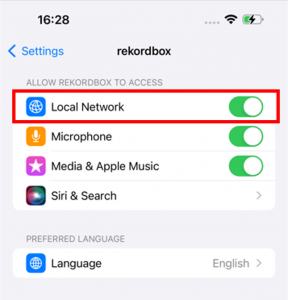
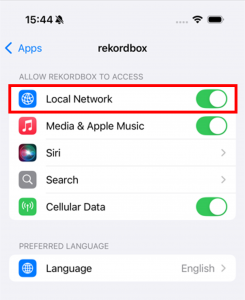
You'll need to allow rekordbox to access your local network. You can do this in the iOS settings.
iOS16, 17
Settings > rekordbox
iOS18
Settings > Apps > rekordbox
https://rekordbox.com/en/support/faq/troubleshooting-errors-mobile/#faq-q100002
You'll need to allow rekordbox to access your local network. You can do this in the iOS settings.
iOS16, 17
Settings > rekordbox
iOS18
Settings > Apps > rekordbox
https://rekordbox.com/en/support/faq/troubleshooting-errors-mobile/#faq-q100001
If you are connected to the DJ controller, access [Settings] > [DJ Controller Device Name] to use the setting items to change the settings.
If you are using the app on its own, access [Settings] > [General] to use the setting items to change the settings.
https://rekordbox.com/en/support/faq/troubleshooting-errors-mobile/#faq-q100087
When connected to the DJ controller via USB cable, audio is not output from the mobile device by default, but rather from external speakers or headphones connected to the DJ controller.
If you want to output audio from your mobile device, in rekordbox for iOS, enable [Output audio from the iPhone speaker only] or [Output audio from the iPad speaker only] under [Settings] > [Audio].
This allows Master audio to be output from your mobile device's speaker.
However, Master audio will not be output from the DJ controller.
Additionally, the following operations on the DJ controller will be restricted:
https://rekordbox.com/en/support/faq/troubleshooting-errors-mobile/#faq-q100055
When connected via Bluetooth, access the volume controls on your mobile device and use the MASTER LEVEL knob on the DJ controller to adjust the volume.
Check that both are set to an appropriate volume.
https://rekordbox.com/en/support/faq/troubleshooting-errors-mobile/#faq-q100091
When you are connected to DJ Controller with Bluetooth and you want to use the Headphones CUE buttons (channel)/(master), enable Split Output with the following steps:

(1) Speaker with built-in amplifier, etc.
(2) Headphones
(3) Plug for the speaker with built-in amplifier, etc.
(4) Plug for the headphones
(5) Split cable (not supplied / This is supplied with DDJ-200)
(6) USB/Lightning to 3.5 mm headphones jack (not supplied)
Split cables whose functions have been tested are as follows:
(Manufacturer / Model number / Product name)
Native Instruments / - / Traktor DJ Cable
Sound Active / 3.5-STJX2–0.5M / Exform iDJ Split Cable
https://rekordbox.com/en/support/faq/troubleshooting-errors-mobile/#faq-q100054
When you connect to DDJ-FLX4 with Bluetooth, no sound is output from the MASTER output terminals and headphones output terminals of DDJ-FLX4.
To do so, use the speaker or headphone terminal of the mobile device.
https://rekordbox.com/en/support/faq/troubleshooting-errors-mobile/#faq-q100056
When you connect to DDJ-FLX2 with Bluetooth, no sound is output from the MASTER output terminals and headphones output terminals of DDJ-FLX2.
To do so, use the speaker or headphone terminal of the mobile device.
https://rekordbox.com/en/support/faq/troubleshooting-errors-mobile/#faq-q100089
Change the iPad settings with the following procedure.


https://rekordbox.com/en/support/faq/troubleshooting-errors-mobile/#faq-q100092
Establish a connection via Bluetooth.
Some DJ controllers and iOS devices with Lightning terminals may not communicate even if connected via USB.
*For details, refer to your DJ Controller Instruction Manual.
https://rekordbox.com/en/support/faq/troubleshooting-errors-mobile/#faq-q100083
Check the Bluetooth indicator and perform the following.
https://rekordbox.com/en/support/faq/troubleshooting-errors-mobile/#faq-q100086
The environment you're using the mobile device in may be a factor.
The following may solve the issue:
If the problem persists even after addressing the above, please get in touch at Inquiries.
https://rekordbox.com/en/support/faq/troubleshooting-errors-mobile/#faq-q100084
You will see download errors when:
https://rekordbox.com/en/support/faq/troubleshooting-errors-mobile/#faq-50651
If your version of rekordbox for iOS is old, this symptom may occur. Upgrade to version 4.1.0 or higher before use.
https://rekordbox.com/en/support/faq/troubleshooting-errors-mobile/#faq-q100066