FAQ
What do you need help with?


Support
Information
Compatibility
Guide
Help
What do you need help with?
rekordbox for iOS (ver. 4)
Units compatible with PRO DJ LINK
| Wi Fi | Wired connection | ||
|---|---|---|---|
| USB | Ethernet | ||
| CDJ-3000X | ✔ | Type-C | ✔ |
| CDJ-3000 | ✔ | Type-B | ✔ |
| CDJ-TOUR1 | ✔ | Type-B | ✔ |
| CDJ-2000NXS2 | ✔ | Type-B | ✔ |
| CDJ-2000NXS | ✔ | ✕ | ✔ |
| CDJ-900NXS | ✔ | ✕ | ✔ |
| XDJ-1000MK2 | ✔ | Type-B | ✔ |
| XDJ-1000 | ✔ | ✕ | ✔ |
| XDJ-700 | ✔ | ✕ | ✔ |
| DJM-V5 | ✔ | ✕ | ✔ |
| DJM-A9 | ✔ | ✕ | ✔ |
| euphonia | ✕ | ✕ | ✕ |
| OPUS-QUAD | ✔ | Type-C | ✔ |
| OMNIS-DUO | ✔ | ✕ | ✕ |
| XDJ-AZ | ✔ | Type-C | ✔ |
| XDJ-XZ | ✔ | Type-B | ✔ |
| XDJ-RR | ✕ | Type-B | ✕ |
| XDJ-RX3 | ✕ | Type-B | ✕ |
| XDJ-RX2 | ✕ | Type-B | ✕ |
| XDJ-RX | ✔ | ✕ | ✔ |
https://rekordbox.com/en/support/faq/ios/#faq-1238
From rekordbox for iOS (ver. 4), DJ play is enabled by rotating the mobile device sideways in addition to music management.
Additionally, DJ play is enabled by connecting the supported DJ controller.
You can also download the tracks to CDJ/XDJ by connecting mobile device to CDJ/XDJ with PRO DJ LINK as always.
https://rekordbox.com/en/support/faq/ios/#faq-3525
From rekordbox for iOS (ver. 4), iPad is also supported.
https://rekordbox.com/en/support/faq/ios/#faq-3526
Note: rekordbox for iOS (ver. 4) does not support (USB Type-A) wired connection.
- Wired connection (USB Type-B)
Connect DJ players (CDJ/XDJ) and a DJ mixer to a switching hub or a router with a built-in switching hub.
Connect your mobile device to a USB Type-B port on either of the DJ players (CDJ/XDJ).
*Turn off Wi-Fi on your mobile device to change to a wired connection.
Example

(1) Switching hub or router with built-in switching hub
(2) LAN cable
(3) Lightning to USB A adapter
(4) USB cable (A-B)
*(1) and (2) are not required for connection with All-in-one-DJ-System.
*Behaviors may differ from expectations depending on external devices, cables, and adapters.
- Wired connection (USB Type-C)
Connect DJ players (CDJ/XDJ) and a DJ mixer to a switching hub or a router with a built-in switching hub.
Connect your mobile device to a USB Type-C port on either of the DJ players (CDJ/XDJ).
*Turn off Wi-Fi on your mobile device to change to a wired connection.
Example

(1) Switching hub or router with built-in switching hub
(2) LAN cable
(3) Lightning to USB A adapter
(4) USB cable (A-C)
(5) USB cable (C-C)
*(1) and (2) are not required for connection with All-in-one-DJ-System.
*Behaviors may differ from expectations depending on external devices, cables, and adapters.
- Wired connection (Ethernet)
Connect DJ players (CDJ/XDJ) and a DJ mixer to a switching hub or a router with a built-in switching hub.
Connect your mobile device to a router or LAN hub.
*Turn off Wi-Fi on your mobile device to change to a wired connection.
Example

(1) Switching hub or router with built-in switching hub
(2) LAN cable
(3) Lightning to USB A adapter
(4) USB Ethernet adapter
*(1) is not required for connection with All-in-one-DJ-System.
*Behaviors may differ from expectations depending on external devices, cables, and adapters.
- Wireless connection (Wi-Fi)
Connect DJ players (CDJ/XDJ) and a DJ mixer to a wireless router with a built-in switching hub.
Connect your mobile device to the wireless router.
Example

(1) Wireless router with built-in switching hub
(2) LAN cable
*Behaviors may differ from expectations depending on external devices, cables, and adapters.
For details on PRO DJ LINK connection, see the PRO DJ LINK Setup Guide.
The PRO DJ LINK Setup Guide is available here.
https://rekordbox.com/en/support/faq/ios/#faq-q100037
We ask you to log in with your AlphaTheta account in order to do the following features.
In addition, logging in allow us to collect feedback and information to improve our products.
https://rekordbox.com/en/support/faq/ios/#faq-q100082
If you make/receive a phone call or use another application while DJing using rekordbox for iOS, rekordbox for iOS will continue running in the background. However, applications running in the background may stop or pause depending on iOS control. If this happens, you'll need to reconnect rekordbox for iOS.
https://rekordbox.com/en/support/faq/ios/#faq-3561
Libraries from earlier versions of rekordbox for iOS can't be used with rekordbox for iOS (ver. 4). If you're using a PC/Mac, you can convert the library from a version of rekordbox for Mac/Windows earlier than ver. 6 to use with rekordbox for Mac/Windows (ver. 6). Then you can sync it with rekordbox for iOS (ver. 4).
https://rekordbox.com/en/support/faq/ios/#faq-3527
It takes about 20 seconds to start communication after connecting the CDJ/XDJ/DJM to your mobile device via a wired connection.
Wait a while after connecting, then tap [Connect to CDJ/XDJ/DJM].
https://rekordbox.com/en/support/faq/ios/#faq-12293
The rekordbox for iOS (ver. 4) library can't sync with the one in a version of rekordbox for Mac/Windows earlier than ver. 6. Please use rekordbox for Mac/Windows (ver. 6) to sync a library with rekordbox for iOS (ver. 4).
https://rekordbox.com/en/support/faq/ios/#faq-3528
You can't directly browse iTunes/Apple Music app playlists in rekordbox for iOS, but you can use them via rekordbox for Mac/Windows in the following way:
1. Right-click the playlist displayed in the [iTunes] category in rekordbox for Mac/Windows and click [Import Playlist].
-> The playlist is copied to the [Playlists] category. (Please note that copied playlists are not synced when you change your iTunes/Apple Music app playlists.)
2. Connect rekordbox for Mac/Windows and rekordbox for iOS to the same Wi-Fi network.
3. In rekordbox for iOS, tap [Connect to rekordbox (Mac/Win)].
4. In rekordbox for Mac/Windows, click [SEARCH MOBILE].
-> The playlist copied in step 1 will be synced to rekordbox for iOS.
5. Right-click the track you want to use in rekordbox for Mac/Windows and click [Mobile Library Sync] > [Transfer to the mobile device].
-> The track will be transferred.
https://rekordbox.com/en/support/faq/ios/#faq-3570
rekordbox for iOS supports the streaming services shown below.
(As of December 2025)
Please confirm the support status in each country with each streaming service.
* Even in regions where Spotify is available, you may not be able to use it on rekordbox (and other DJ applications).
https://rekordbox.com/en/support/faq/ios/#faq-q100057
The following DJ controllers are supported.
・DDJ-200
・DDJ-FLX2
・DDJ-FLX4
・DDJ-GRV6
https://rekordbox.com/en/support/faq/ios/#faq-q100051
In rekordbox for iOS (ver. 3 or later), the process for making a wired connection has changed from the previous method of connecting from a USB Type-A terminal to a USB Type-B or Type-C terminal.
To learn how to connect, click here.
Traditional connection methods limit file transfer speed, and file formats such as WAV/AIFF and FLAC/ALAC can’t be used.
With rekordbox for iOS (ver. 3 or later), we've changed the wired connection method to allow these file formats, and to improve stability.
https://rekordbox.com/en/support/faq/ios/#faq-12681
Communication between devices may be blocked by network security.
Wi-Fi router security settings may block communication between devices. Please check the settings of your Wi-Fi router.
If you're using a VPN connection, please turn off the VPN connection.
A firewall blocking the communication can be one of other possible reasons.
https://rekordbox.com/en/support/faq/ios/#faq-3648
The audio quality and format of SoundCloud tracks have been changed.
Therefore, BeatGrids and CUE points analyzed prior to ver. 4.6.4 may be misaligned.
If you notice any misalignment, please reanalyze the tracks and reset the CUE points.
Also, changing the [Audio Quality] setting may cause BeatGrids and CUE points to misalign.
For details, please see here.
https://rekordbox.com/en/support/faq/ios/#faq-93272
Depending on the tracks, the selected sound quality may not be available.
If Standard Quality is unavailable, the track will be analyzed and played back in High Quality;
if High Quality is unavailable, it will be analyzed and played back in Standard Quality.
https://rekordbox.com/en/support/faq/ios/#faq-93381
For the latest information, refer to the website of each service.
https://rekordbox.com/en/support/faq/ios/#faq-q100074
No, Spotify tracks cannot be stored offline.
https://rekordbox.com/en/support/faq/ios/#faq-88605
No, they cannot be played offline.
https://rekordbox.com/en/support/faq/ios/#faq-88632
For the latest information on countries and regions where Spotify is available, check out the Spotify website.
Even in regions where Spotify is available, you may not be able to use it on rekordbox (and other DJ applications).
https://rekordbox.com/en/support/faq/ios/#faq-89100
Audio playback may be interrupted if your mobile device is in any of the following situations:
https://rekordbox.com/en/support/faq/ios/#faq-92271
In version 4.6.0, we have changed the specifications related to grids for Apple Music tracks.
Due to this change, BeatGrids and Cue points may become misaligned. If you notice any misalignment, please re-analyze the track and reset the Cue points.
https://rekordbox.com/en/support/faq/ios/#faq-92220
Are you using the same Spotify account on other devices? Spotify does not allow simultaneous playback on multiple devices using a single account.
If you start playback on another device, Spotify playback on rekordbox will be automatically stopped.
https://rekordbox.com/en/support/faq/ios/#faq-92168
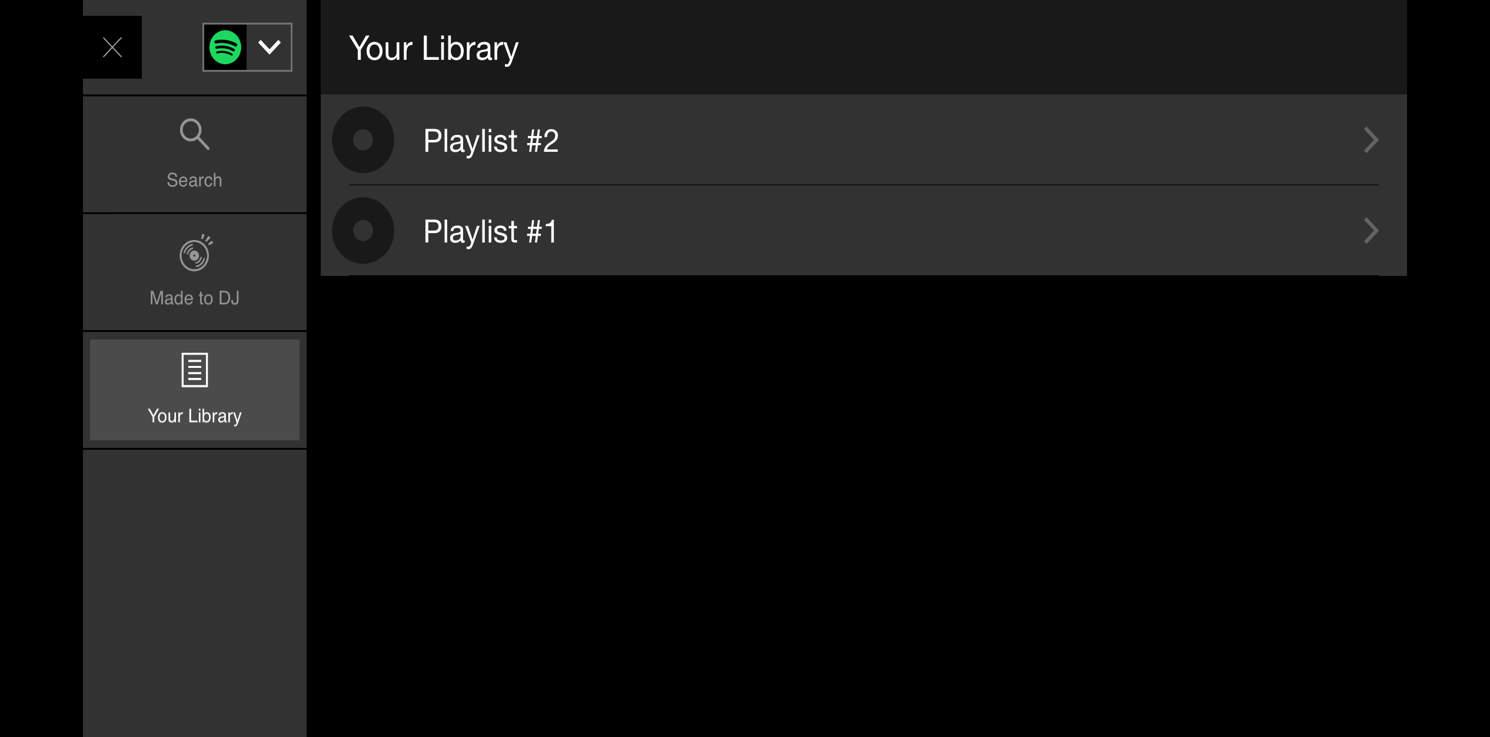
Unlike tracks from other streaming services, Spotify tracks cannot be added to rekordbox playlists.
However, you can view playlists created in the Spotify app or other similar apps using rekordbox for iOS.
https://rekordbox.com/en/support/faq/ios/#faq-92112
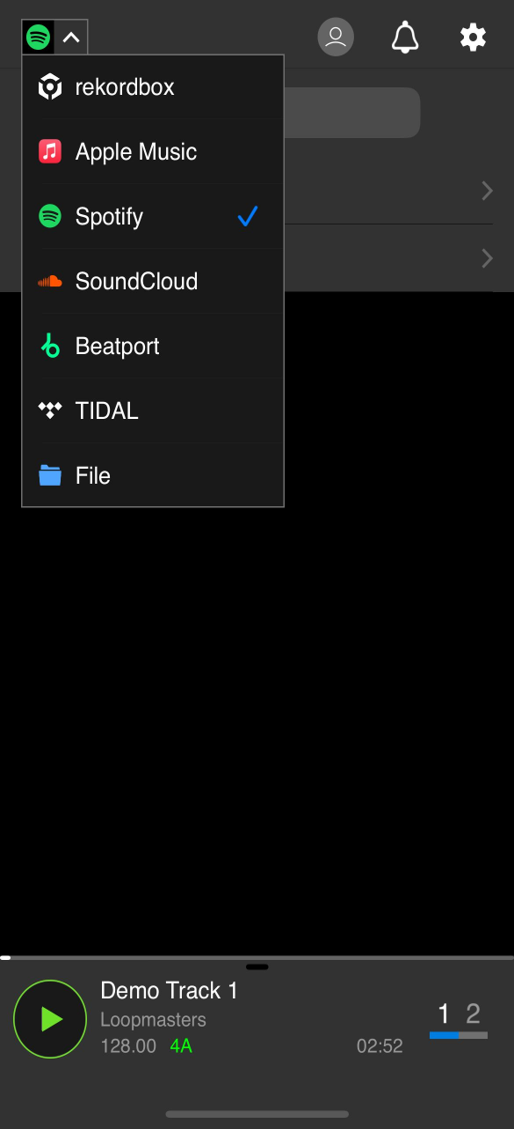
Unlike tracks from other streaming services, Spotify tracks are not imported into [Collection].
As a result, they will not appear in [Histories] or [Related Tracks].
To use Spotify tracks, select [Spotify] from the dropdown menu and then choose tracks.
https://rekordbox.com/en/support/faq/ios/#faq-92047
Spotify is a music streaming service available worldwide, offering access to over 100 million tracks.
Spotify Premium users can play music on rekordbox simply by logging into Spotify.
For more details, please visit the Spotify website.
For information on Spotify support, please check from here.
https://rekordbox.com/en/support/faq/ios/#faq-91995
The features marked with a check in the table below are available in Lite Mode.
| Function | Available |
|---|---|
| CUE | - |
| HOT CUE | - |
| MEMORY CUE | - |
| AUTO LOOP | - |
| MANUAL LOOP | - |
| BEAT JUMP | - |
| TEMPO SLIDER | - |
| SLIP | - |
| SYNC | ✔* |
| SMART FADER | ✔* |
| KEY SYNC | - |
| KEYBOARD | - |
| CHANNEL FADER | - |
| CROSSFADER | ✔ |
| TRIM | - |
| EQ | - |
| SAMPLER | ✔ |
| SAMPLER Volume Adjustment | - |
| SAMPLER Customization | - |
| PAD FX | ✔ |
| PAD FX Customization | - |
| BEAT FX | - |
| RELEASE FX | - |
| Recording | - |
| Upload to online storage | - |
*In Lite Mode, these features are permanently fixed to ON.
https://rekordbox.com/en/support/faq/ios/#faq-86278
Yes, you can.
However, recording is not available if:
https://rekordbox.com/en/support/faq/ios/#faq-84154
The following are available as paid functions:
https://rekordbox.com/en/support/faq/ios/#faq-q100062
Access Mixcloud using your default browser and log out.
After that, open rekordbox for iOS, tap [Upload] and log in; now you will be able to switch your account.
https://rekordbox.com/en/support/faq/ios/#faq-q100132
Supported options:
Without an in-app subscription: AAC 64kbps only.
Subscribers have access to all supported audio formats.
The audio format is not changed automatically, so please make sure to set the preferred format before recording.
You can change the audio format from [Settings] > [Recording] > [Sound Quality].
*When using WAV format, the maximum recording time per session is approximately 6 hours.
*When using AAC format, the recording time is unlimited.
https://rekordbox.com/en/support/faq/ios/#faq-q100131
Yes. You can record audio when connected to the DDJ-FLX4.
Select [Settings] > [DDJ-FLX4] > [Microphone Input], then [Effect mode].
https://rekordbox.com/en/support/faq/ios/#faq-q100130
While uploading, rekordbox for iOS/Android may become unstable.
Also, you can only upload one file at a time.
https://rekordbox.com/en/support/faq/ios/#faq-q100129
Follow the steps below:
You can view or move saved recording(s) using your mobile device's default file app.
https://rekordbox.com/en/support/faq/ios/#faq-q100128
Follow the steps below to upload the recordings:
https://rekordbox.com/en/support/faq/ios/#faq-q100127
Tap the rekordbox button at the top of the screen to open [Menu], then tap the [Recording] button to start recording.
You can view your recordings in [Recording List] in [Menu].
The following actions are available in [Recording List]:
https://rekordbox.com/en/support/faq/ios/#faq-q100126
The recording feature allows you to save your DJ performance on rekordbox for iOS/Android as recordings in WAV or AAC format.
This feature can also be used while connected to a supported DJ controller.
With an in-app subscription, you can enjoy unlimited high-quality audio recording. (If you do not have an in-app subscription, recording is limited to 30min/week.)
You can also upload your recordings to Mixcloud and SoundCloud
https://rekordbox.com/en/support/faq/ios/#faq-q100125
This pop-up is displayed if it was properly sent from rekordbox for iOS/Android to the server.
If you can't log in to DJ equipment even if this pop-up is displayed, communication between DJ equipment and the server may not have processed properly.
Check the DJ equipment Internet connection, adjust the Internet environment, and try again.
https://rekordbox.com/en/support/faq/ios/#faq-q100093
The reception may be bad and the mobile device may not be capable of accessing the Internet. Try again in a location with good reception.
https://rekordbox.com/en/support/faq/ios/#faq-q100120
Check the following.
Check for compatible DJ equipment
Internet settings
Mobile device settings
Compatible DJ equipment settings
https://rekordbox.com/en/support/faq/ios/#faq-q100124
The following 3 are required.
In this way, you can play tracks by automatically logging in to TIDAL with compatible DJ equipment.
https://rekordbox.com/en/support/faq/ios/#faq-q100123
The same as rekordbox for Mac/Windows.
However, rekordbox for iOS/Android has the following limitations.
https://rekordbox.com/en/support/faq/ios/#faq-q100122
If you are using Google Drive, you must log in to Google Drive with both rekordbox for iOS/Android and rekordbox for Mac/Windows.
This is due to system specifications.
If you do not own a PC or Mac, you can smoothly use CloudDirectPlay by using Dropbox instead.
https://rekordbox.com/en/support/faq/ios/#faq-q100121
This error may be displayed when the login operation takes too long while the login screen is displayed on rekordbox for iOS/Android after the mobile device is held over the DJ equipment.
As shown in the error display, hold the mobile device over the DJ equipment again.
https://rekordbox.com/en/support/faq/ios/#faq-q100119
By logging in to DJ equipment, the following useful functions will become available:
See here for which functions are available on which DJ equipment.
https://rekordbox.com/en/support/faq/ios/#faq-q100116
Some DJ equipment support login through rekordbox for iOS/Android installed on smartphones and tablets.
See here for details.
https://rekordbox.com/en/support/faq/ios/#faq-87389
Prepare and perform login operations by following the steps below.
What to prepare
Login
https://rekordbox.com/en/support/faq/ios/#faq-q100118
Prepare and perform login operations by following the steps below.
What to prepare
Login
https://rekordbox.com/en/support/faq/ios/#faq-q100117
Refer to the following diagram for DJ equipment that support login.
*Please note that the login method varies by equipment.
| How to log in | Supported Function | Supported Streaming | ||||||
| Login-capable DJ equipment | USB storage device | QR code | NFC touch | CloudDirectPlay | StreamingDirectPlay | Beatport Streaming | TIDAL | Apple Music |
| CDJ-3000X | ✓ | ✓ | ✓ | ✓ | ✓ | ✓ | ✓ | |
| CDJ-3000 | ✓ | ✓ | ✓ | ✓ | ||||
| XDJ-AZ | ✓ | ✓ | ✓ | ✓ | ✓ | |||
| OMNIS-DUO | ✓ | ✓ | ✓ | ✓ | ✓ | |||
| OPUS-QUAD | ✓ | ✓ | ✓ | ✓ | ||||
Login methods include the following 3 methods.
(A)Login using USB storage
(B)Login by scanning QR codes
(C)Log in by holding the mobile device over the NFC login touch area (only NFC compatible models)
https://rekordbox.com/en/support/faq/ios/#faq-q100114
Yes.
Open [Settings], select [General], and turn off [Jog Ring Animation].
https://rekordbox.com/en/support/faq/ios/#faq-86280
No, in Lite Mode, the BPM of the left and right decks are always synchronized.
https://rekordbox.com/en/support/faq/ios/#faq-86276
No, you cannot change the BPM for each deck in Lite mode.
https://rekordbox.com/en/support/faq/ios/#faq-86274
Yes.
You can change settings to automatically play tracks as soon as they are loaded into the deck.
Open [Settings], select [General], and turn ON [Auto Play when loaded].
https://rekordbox.com/en/support/faq/ios/#faq-86272
No, Lite Mode is not available when a DJ controller is connected.
https://rekordbox.com/en/support/faq/ios/#faq-86270
Yes, Lite Mode is available for free.
https://rekordbox.com/en/support/faq/ios/#faq-86268

https://rekordbox.com/en/support/faq/ios/#faq-86264
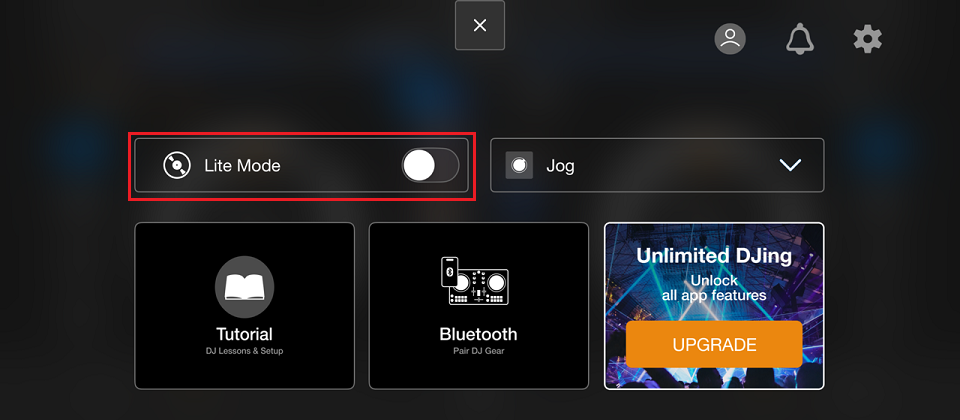
Lite Mode is a simplified mode with limited features, designed for beginners to enjoy DJ playing with intuitive operations.
https://rekordbox.com/en/support/faq/ios/#faq-86261
Additionally, the following operations on the DJ controller will be restricted:
https://rekordbox.com/en/support/faq/ios/#faq-q100090
You can connect to DDJ-FLX4 using a USB cable or Bluetooth.
For details, refer to the Instruction Manual of DDJ-FLX4.
In rekordbox for iOS, enable "Output audio from the iPhone speaker only" or "Output audio from the iPad speaker only" under [Settings] > [Audio].
This allows Master audio to be output from your mobile device's speaker.
However, Master audio will not be output from the DJ controller.
Additionally, the following operations on the DJ controller will be restricted:
*When using the unit with a USB power adapter or mobile battery connected to the USB port (for power supply), make sure it has a maximum voltage of 24V or less and DC 9V 3A.
*Use a USB cable certified to the appropriate standard.
*Use a mobile battery without a power-saving function.
https://rekordbox.com/en/support/faq/ios/#faq-q100052
In rekordbox for iOS, enable [Output audio from the iPhone speaker only] or [Output audio from the iPad speaker only] under [Settings] > [Audio].
This allows Master audio to be output from your mobile device's speaker.
However, Master audio will not be output from the DJ controller.
Additionally, the following operations on the DJ controller will be restricted:
https://rekordbox.com/en/support/faq/ios/#faq-86290
This is a feature that allows you to enjoy DJ playing easily with low latency without external speakers when connected to a supported DJ controller via USB cable.
Please enable [Output audio from the iPhone speaker only] or [Output audio from the iPad speaker only] under [Settings] > [Audio].
This allows Master audio to be output from your mobile device's speaker.
However, Master audio will not be output from the DJ controller.
Additionally, the following operations on the DJ controller will be restricted:
Compatible DJ controllers:
https://rekordbox.com/en/support/faq/ios/#faq-86288
Yes you can. Select [File] on the library selection screen.
*This function was added on ver. 4.4.0. Update rekordbox to its latest version.
https://rekordbox.com/en/support/faq/ios/#faq-q100110
This error message appears because you cannot use the same Apple Account on multiple apps and devices at the same time.
Close the other apps and devices that are using Apple Music, and try again.
https://rekordbox.com/en/support/faq/ios/#faq-q100104
Your region does not allow tracks that contain explicit lyrics (tracks with [E] in the title) to be played.
https://rekordbox.com/en/support/faq/ios/#faq-q100105
Follow the steps below:
https://rekordbox.com/en/support/faq/ios/#faq-q100106
You cannot export to USB storage devices from rekordbox for iOS/Android.
https://rekordbox.com/en/support/faq/ios/#faq-q100113
It is only displayed on portrait mode.
Change the setting to portrait mode and select from the [Browse] screen.
https://rekordbox.com/en/support/faq/ios/#faq-q100112
Follow the steps below:
https://rekordbox.com/en/support/faq/ios/#faq-q100107
When you log out and then log in again to Google Drive, Dropbox, iCloud, or other cloud storage services, you may not be able to access the tracks and folders that you added from those services.
In such a case, delete the tracks and folders that you could not access from [Added tracks] and [Added folders] first and then add them back again.
https://rekordbox.com/en/support/faq/ios/#faq-q100103
Sometimes, when you try to select a large file on the [Browse] screen of iOS, you may fail and the [Browse] screen repeatedly appears due to an iOS limitation.
In such a case, add the folder containing the tracks you want to add from [Add folders].
https://rekordbox.com/en/support/faq/ios/#faq-q100096
rekordbox CloudDirectPlay enables you to play tracks from the latest version of your rekordbox library – directly from the cloud – when using Compatible DJ equipment.
Refer to the "rekordbox CloudDirectPlay Operation Guide" on the Manuals page for how to use rekordbox CloudDirectPlay.
Note: Free plan and Core plan users can use up to 20 tracks that can be added to the [Trial playlist - Cloud Library Sync].
https://rekordbox.com/en/support/faq/ios/#faq-q700042
If there is a different rekordbox that you have already logged into using your AlphaTheta account, a single sign-on to rekordbox for iOS will change the TIDAL accounts on any other rekordboxes logged into at a later time to the account being used on TIDAL on the first rekordbox.
Please log back in with the TIDAL account you wish to use.
https://rekordbox.com/en/support/faq/ios/#faq-q100095
Follow the steps below to use single sign-on to log in.
TIDAL can be used without the need to log in on DJ equipment.
*Ensure that you have updated to the latest versions of the compatible DJ equipment firmware and rekordbox for iOS before using.
(1)Log in to rekordbox for iOS with your AlphaTheta account.
(2)Log in to TIDAL on rekordbox for iOS .
(3)Connect a USB or SD device authenticated with rekordbox for Mac/Windows to your DJ equipment.
https://rekordbox.com/en/support/faq/ios/#faq-q100094
No, you are not required.
You must sign up for a subscription from the app only if using paid functions.
Go here for details
https://rekordbox.com/en/support/faq/ios/#faq-q100070
You can connect to DDJ-200 using a USB cable or Bluetooth.
For details, refer to the Instruction Manual of DDJ-200.
- To connect using Bluetooth
1. Connect a power supply of DC +5 V and 500 mA or more to the DDJ-200 USB terminal.
2. Connect rekordbox for iOS with Bluetooth.
*The sound is output from the mobile device.
*There is a greater likelihood of experiencing audio latency compared to a USB connection.
https://rekordbox.com/en/support/faq/ios/#faq-q100067
To use the rekordbox Cloud Option 1TB powered by Dropbox feature, you'll need to:
rekordbox for Mac/Windows ver. 6.8.0 or later
rekordbox for iOS ver. 4.1.0 or later
rekordbox for Android ver. 4.1.0 or later
Find out more details here.
https://rekordbox.com/en/support/faq/ios/#faq-53311
If you change your plan from the Cloud Option to the Professional plan, the Dropbox account that has joined the Cloud Option DJ team will automatically be invited to the Professional DJ team.
If you change your plan from the Professional plan to the Cloud Option, the Dropbox account that has joined the Professional DJ team will automatically be invited to the Cloud Option DJ team when the Professional plan term of validity expires.
In both cases, check for invitation emails from Dropbox and join the team.
https://rekordbox.com/en/support/faq/ios/#faq-52052
This is a cloud storage service with up to 1 TB of space you can use by adding the Cloud Option.
By adding your Dropbox personal account to the Dropbox Business team (Cloud Option DJ team), you can use up to 1 TB worth of space on the cloud storage.
Using the Cloud Library Sync enables you to upload and save music and video files to the cloud storage.
Music files already saved to the cloud storage with your Dropbox personal account can be used continually by moving your data files to the Cloud Option DJ team.
Find out more details here.
https://rekordbox.com/en/support/faq/ios/#faq-52041
A Dropbox Business team for Cloud Option.
You can use up to 1 TB worth of cloud storage space by entering your Dropbox personal account in the Cloud Option DJ team.
https://rekordbox.com/en/support/faq/ios/#faq-52047
You will first have to make a full payment of the Cloud Option. Afterward, payments for unused days will be refunded.
The maximum rate for refunds is 90%.
https://rekordbox.com/en/support/faq/ios/#faq-52057
When PRO DJ LINK is connected, the tracks of the streaming service cannot be used.
https://rekordbox.com/en/support/faq/ios/#faq-q100065
For the cancellation, please contact Apple Inc. or Google LLC from the links shown below.
https://rekordbox.com/en/support/faq/ios/#faq-q100065
Please contact Apple Inc. or Google LLC.
https://rekordbox.com/en/support/faq/ios/#faq-q100064
Yes, you need to sign up for a subscription from the app separately.
https://rekordbox.com/en/support/faq/ios/#faq-q100061
Turn off the rotation lock function of your mobile device and turn it sideways again.
If you are connected to PRO DJ LINK, your screen will be locked to portrait mode.
*It may not be possible to rotate the mobile device sometimes, such as when displaying a pop-up message.
https://rekordbox.com/en/support/faq/ios/#faq-q100053
Mobile devices with rekordbox for iOS/Android ver. 3.4.2 or earlier installed cannot be activated.
Please use one of the following rekordbox versions.
Please also see here.
https://rekordbox.com/en/support/faq/ios/#faq-45345
There are possible causes as follows.
https://rekordbox.com/en/support/faq/ios/#faq-38691
Refer to the "rekordbox CloudDirectPlay Operation Guide" on the Manuals page for how to use rekordbox CloudDirectPlay.
https://rekordbox.com/en/support/faq/ios/#faq-34855
For the policy on third-party access to personal files, please see the following link.
rekordbox Software License Agreement
https://rekordbox.com/en/support/faq/ios/#faq-36790
On rekordbox for iOS (ver. 4), you can check the status of your subscription but you can't start/cancel it. To start/cancel a subscription, visit rekordbox.com.
https://rekordbox.com/en/support/faq/ios/#faq-3718
Tracks deleted from the iOS Music app won't be available in rekordbox for iOS.
https://rekordbox.com/en/support/faq/ios/#faq-3626
Follow the steps below to check the email address of the AlphaTheta account with which you're logged into rekordbox for Mac/Windows:
https://rekordbox.com/en/support/faq/ios/#faq-3582
The following features are available in rekordbox for iOS/Android when you start a subscription plan.
rekordbox for iOS/Android ver. 4.1.0 or later
See details about the Cloud Library Sync at Features and FAQ.
rekordbox for iOS ver. 2.4.0.6. or earlier
https://rekordbox.com/en/support/faq/ios/#faq-3728
You can't use track search when a track is loaded to DJ equipment using rekordbox for iOS.
You can't call up a Hot Cue on another track when you’re using rekordbox for iOS because selected Hot Cues are canceled when you change the track that’s being played.
https://rekordbox.com/en/support/faq/ios/#faq-3637
You need to activate your mobile device.
In rekordbox for iOS, open [Settings] > [Account Information] > [Subscription Plan] and turn on [Activate].
You can check the activation status on My Page on the rekordbox website.
Upgrade rekordbox for iOS to the following versions.
Professional plan: version 3.2.0 or higher
Cloud Option: version 4.1.0 or higher
https://rekordbox.com/en/support/faq/ios/#faq-q100005
You can connect to DDJ-FLX2 using a USB cable or Bluetooth.
For details, refer to the Instruction Manual of DDJ-FLX2.
In rekordbox for iOS, enable "Output audio from the iPhone speaker only" or "Output audio from the iPad speaker only" under [Settings] > [Audio].
This allows Master audio to be output from your mobile device's speaker.
However, Master audio will not be output from the DJ controller.
Additionally, the following operations on the DJ controller will be restricted:
https://rekordbox.com/en/support/faq/ios/#faq-q100088
You can't connect rekordbox for Mac/Windows (ver. 5) with rekordbox for iOS/Android (ver. 3) via Wi-Fi.
To do this, you'll need to use rekordbox for Mac/Windows (ver. 6) or later.
Library sync features are made possible by the reconfigured libraries in rekordbox for Mac/Windows (ver. 6) and rekordbox for iOS/Android (ver. 3).
If you connect rekordbox for Mac/Windows (ver. 6) and rekordbox for iOS/Android (ver. 3) via Wi-Fi, you can use the new library sync feature, Mobile Library Sync.
https://rekordbox.com/en/support/faq/ios/#faq-12585
When a track title is grayed out, it means the file doesn't exist on that device. To play the track on your mobile device, you need to transfer it in one of the following ways:
■ File transfer using Mobile Library Sync
1. Connect rekordbox for Mac/Windows and rekordbox for iOS/Android to the same Wi-Fi network.
2. In rekordbox for iOS/Android, tap [Connect to rekordbox (Mac/Win)].
3. In rekordbox for Mac/Windows, click [SEARCH MOBILE].
4. Select the track from a track list in rekordbox for Mac/Windows, and right-click to show the context menu. Select [Mobile Library Sync] > [Transfer to the mobile device].
■ Using Cloud Library Sync
1. Upload the track from the device that contains it.
1-1. rekordbox for Mac/Windows: Select the track from a track list, right-click and select [Cloud Library Sync] > [Upload] from the context menu.
1-2. rekordbox for iOS/Android: Swipe the track to the left, tap [...], then tap [Upload to Cloud].
2. Once you've uploaded the track, your mobile device will display the following icon:

After swiping the track to the left, tap [...], and select [Download from Cloud].
https://rekordbox.com/en/support/faq/ios/#faq-3604
Communication between devices may be blocked by network security.
Wi-Fi router security settings may block communication between devices. Please check the settings of your Wi-Fi router.
If you're using a VPN connection, please turn off the VPN connection.
A firewall blocking the communication can be one of other possible reasons.
https://rekordbox.com/en/support/faq/ios/#faq-12606
The rekordbox for Mac/Windows [Inflyte] category is not synced to rekordbox for iOS. However, you can play tracks from Inflyte in [Collection].
https://rekordbox.com/en/support/faq/ios/#faq-3615
The types of audio files listed below are not supported in rekordbox for iOS:
・Audio files downloaded from Apple Music
・Audio files not downloaded from iCloud
・Audio files protected by Digital Rights Management (DRM)
*To Apple Music users
You can use it immediately by logging in with your Apple Account.
https://rekordbox.com/en/support/faq/ios/#faq-12763
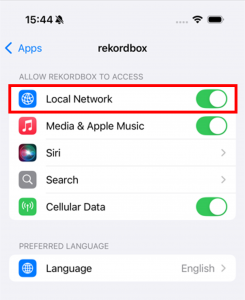
You'll need to allow rekordbox to access your local network. You can do this in the iOS settings.
iOS16, 17
Settings > rekordbox
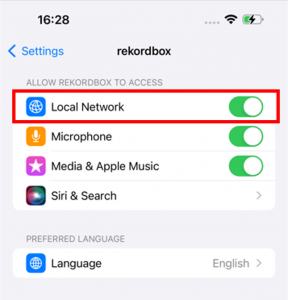
iOS18
Settings > Apps > rekordbox
https://rekordbox.com/en/support/faq/ios/#faq-q100002
You'll need to allow rekordbox to access your local network. You can do this in the iOS settings.
iOS16, 17
Settings > rekordbox
iOS18
Settings > Apps > rekordbox
https://rekordbox.com/en/support/faq/ios/#faq-q100001
The file formats used by each streaming service are as follows:
Apple Music:AAC 256kbps
SoundCloud GO+ : AAC 160kbps/96kbps, AAC 256kbps
SoundCloud DJ : AAC 160kbps/96kbps, AAC 256kbps
TIDAL (plan including DJ Extension) : AAC 320kbps、FLAC 44.1kHz 16bit
Beatport Streaming Advanced : AAC 128kbps
Beatport Streaming Professional : AAC 128kbps、AAC 256kbps、FLAC 44.1kHz 16bit
Spotify Premium : Ogg 96kbps、Ogg 320kbps
(As of February 2026)
https://rekordbox.com/en/support/faq/ios/#faq-q100060
If you are connected to the DJ controller, access [Settings] > [DJ Controller Device Name] to use the setting items to change the settings.
If you are using the app on its own, access [Settings] > [General] to use the setting items to change the settings.
https://rekordbox.com/en/support/faq/ios/#faq-q100087
On rekordbox (iOS) ver. 3, you can check the status of your subscription but you can't start/cancel it.
To start/cancel a subscription, visit rekordbox.com.
Subscription start/cancel page
https://rekordbox.com/en/support/faq/ios/#faq-1603
The DJ controller firmware can be updated by following one of the methods below:
*The method that can be used to connect rekordbox for iOS and the DJ controller to update the firmware varies depending on the DJ controller.
*When updating the firmware, connect your mobile device to a power supply or ensure your mobile device is sufficiently charged before starting the update.
https://rekordbox.com/en/support/faq/ios/#faq-q100085
This depends on your contract with the streaming service, as well as on the copyright laws of each country and international conventions.
Please contact each service for details.
https://rekordbox.com/en/support/faq/ios/#faq-q100024
When connected to the DJ controller via USB cable, audio is not output from the mobile device by default, but rather from external speakers or headphones connected to the DJ controller.
If you want to output audio from your mobile device, in rekordbox for iOS, enable [Output audio from the iPhone speaker only] or [Output audio from the iPad speaker only] under [Settings] > [Audio].
This allows Master audio to be output from your mobile device's speaker.
However, Master audio will not be output from the DJ controller.
Additionally, the following operations on the DJ controller will be restricted:
https://rekordbox.com/en/support/faq/ios/#faq-q100055
SoundCloud Go+/DJ is a subscription streaming service that DJs can use to access the SoundCloud music catalog.
A separate signing up is required to use this service.
For details, refer to the SoundCloud website.
Click here for the SoundCloud FAQ page.
https://rekordbox.com/en/support/faq/ios/#faq-q100017
Apple Music is a global music streaming service that gives you access to more than 100 million tracks and over 30,000 playlists.
If you join a subscription for Apple Music, you can use it by simply logging in from rekordbox for iOS.
Note: If you are on an Apple Music Family plan, minors may be unable to use it due to restrictions associated with the service.
For details, check out the Apple website.
Click here to access the Apple Music FAQ page.
https://rekordbox.com/en/support/faq/ios/#faq-q100098
When connected via Bluetooth, access the volume controls on your mobile device and use the MASTER LEVEL knob on the DJ controller to adjust the volume.
Check that both are set to an appropriate volume.
https://rekordbox.com/en/support/faq/ios/#faq-q100091
With Mobile Library Sync you can sync your rekordbox library when your computers and mobile devices are connected to the same Wi-Fi network.
This helps you to seamlessly prepare tracks for DJing. For example, you can use your computer at home while using a mobile device on the move.
To watch the Mobile Library Sync tutorial video, click here.
https://rekordbox.com/en/support/faq/ios/#faq-q100035
For the latest information on countries and regions where Apple Music is available, check out the Apple website.
https://rekordbox.com/en/support/faq/ios/#faq-q100099
When you are connected to DJ Controller with Bluetooth and you want to use the Headphones CUE buttons (channel)/(master), enable Split Output with the following steps:

(1) Speaker with built-in amplifier, etc.
(2) Headphones
(3) Plug for the speaker with built-in amplifier, etc.
(4) Plug for the headphones
(5) Split cable (not supplied / This is supplied with DDJ-200)
(6) USB/Lightning to 3.5 mm headphones jack (not supplied)
Split cables whose functions have been tested are as follows:
(Manufacturer / Model number / Product name)
Native Instruments / - / Traktor DJ Cable
Sound Active / 3.5-STJX2–0.5M / Exform iDJ Split Cable
https://rekordbox.com/en/support/faq/ios/#faq-q100054
You can use Cloud Library Sync to sync your library on the cloud with the libraries on your computers and mobile devices.
Upload tracks and videos to the cloud, then you can play them on other devices as well.
For example, you can seamlessly use the same library on the computer you use for music production and the laptop you use for DJing. You can also prepare tracks for DJing using a mobile device when you're on the move.
Here are the differences depending on the plan you chose to use.
You can upload and sync up to 20 tracks that can be added to the [Trial playlist - Cloud Library Sync], which is a playlist for sync.
Please note: The entire library will not be synchronized.
The entire library will be synchronized.
You can select individual playlists and tracks to then upload them to the cloud.
This will depend on the Dropbox plan and the Google plan you're using for storage capacity when uploading files.
The entire library will be synchronized.
You can either select individual playlists and tracks to upload to the cloud, or automatically upload all your files.
You can also automatically upload up to 5 TB worth of files on your Dropbox account.
The entire library can be synchronized if you add the Cloud Option to the Free plan, Core plan, or Creative plan.
You can make selections by playlist and track, and upload them to the cloud.
You can also automatically upload up to 1 TB worth of files on your Dropbox account.
To find out more information, watch the Cloud Library Sync tutorial video, click here.
https://rekordbox.com/en/support/faq/ios/#faq-q100034
For the latest news on supported countries, refer to the SoundCloud website.
https://rekordbox.com/en/support/faq/ios/#faq-q100018
To use the rekordbox Cloud 5TB powered by Dropbox feature, you'll need to:
・Start a Professional plan subscription.
・Create a Dropbox personal account.
・Join the Professional DJ team (from My Page on rekordbox.com)
Find out more details here.
https://rekordbox.com/en/support/faq/ios/#faq-q100007
No, they cannot be played offline.
They can only be streamed if playing them on rekordbox for iOS.
https://rekordbox.com/en/support/faq/ios/#faq-q100100
The Professional DJ team is a Dropbox Business team for rekordbox Cloud 5TB powered by Dropbox.
By joining your Dropbox personal account to the Professional DJ team, you can use Dropbox with 5TB storage capacity.
https://rekordbox.com/en/support/faq/ios/#faq-q100008
You can use it if you have signed up for Apple Music.
https://rekordbox.com/en/support/faq/ios/#faq-q100101
[Trial playlist - Cloud Library Sync] is a dedicated playlist for sync that is available for the free and Core plans.
This is created automatically when you start using Cloud Library Sync.
You can add up to 20 tracks to the [Trial playlist - Cloud Library Sync]. When you add a track, it will be automatically uploaded to the cloud storage.
https://rekordbox.com/en/support/faq/ios/#faq-q100036
No. This workflow is not supported.
https://rekordbox.com/en/support/faq/ios/#faq-q100020
It's not possible to join the Professional DJ team and Cloud Option DJ team in any of the following cases:
・The Dropbox account you are using is a team account.
・You created your Dropbox account via "Sign in with Apple ID".
If either of the above applies to you, you'll need to create a new Dropbox personal account. If you're already using Cloud Library Sync, move your music files to the new Dropbox account.
Find details here.
If you don't receive an email from Dropbox inviting you to join the Professional DJ team/Cloud Option DJ team, check your spam folder.
If you didn't receive the email, you can also receive an invitation to join the Professional DJ team/Cloud Option DJ team from the notifications on the Dropbox website.
Find more information on how to check your notifications here.
https://rekordbox.com/en/support/faq/ios/#faq-q100009
The following restriction applies when using tracks from Apple Music.
https://rekordbox.com/en/support/faq/ios/#faq-q100102
You'll still be able to use your Dropbox account that was previously used in the Professional DJ team/Cloud Option DJ team, but your Dropbox account will no longer have 5TB or 1TB storage capacity, and will instead work as a Dropbox Basic account (capacity: up to 2GB).
Previously saved music files won't be deleted even if the total amount exceeds the 2GB limit, but you won't be able to upload any more data.
You can rejoin the Professional DJ team/Cloud Option DJ team with your Dropbox account at any time if you subscribe to the rekordbox Professional plan/Cloud Option.
Find out more details here.
https://rekordbox.com/en/support/faq/ios/#faq-q100010
If you turn on the Collection Auto Upload feature, any files in your collection will be automatically uploaded to the cloud via the Cloud Library Sync feature.
To use this feature, you'll need to subscribe to the Professional plan or Cloud Option. .
https://rekordbox.com/en/support/faq/ios/#faq-q100003
The following restriction applies when using tracks from SoundCloud.
- Tracks can't be loaded to connected devices via PRO DJ LINK.
https://rekordbox.com/en/support/faq/ios/#faq-q100021
The following functions in Dropbox business will not be available via the Professional plan/Cloud Option:
・Dropbox Paper
・Team's shared space
・Group
Find out more about the functions provided in Dropbox Business here.
https://rekordbox.com/en/support/faq/ios/#faq-q100011
If you turn on Auto Upload for a playlist, any files in the playlist will be automatically uploaded to the cloud via Cloud Library Sync.
The Auto Upload settings can be changed for each playlist.
To use this feature, you'll need to subscribe to the Professional, Creative plan or Cloud Option. .
https://rekordbox.com/en/support/faq/ios/#faq-q100004
The following cloud storage services are supported.
- Dropbox
- Google Drive
https://rekordbox.com/en/support/faq/ios/#faq-q100080
To change your email address after joining the Professional DJ team/Cloud Option DJ team, you need to unregister your Dropbox account from the team and change your email address in the settings page of your Dropbox account.
Follow the steps below:
Step 1: Select [Cancel setting] and remove your Dropbox account from the team via the Cloud Settings on My Page at rekordbox.com.
Step 2: Change the email address for your Dropbox account.
Step 3: Join the team using the Dropbox account again via the Cloud Settings on My Page at rekordbox.com.
Find out more about changing the email address for your Dropbox account here.
https://rekordbox.com/en/support/faq/ios/#faq-q100012
SoundCloud Go+: AAC 160kbps/96kbps and AAC 256kbps for SoundCloud High Quality streaming.
For details, refer to the SoundCloud website.
https://rekordbox.com/en/support/faq/ios/#faq-q100022
When logged in to both Dropbox and Google Drive, you can choose only one cloud storage service to upload your tracks to. (You can download tracks from either cloud storage)
You can change the settings from [Settings] > [Account Information] > [Cloud Storage Services] of rekordbox for iOS/Android.
https://rekordbox.com/en/support/faq/ios/#faq-q100078
If you join the Professional DJ team/Cloud Option DJ team using a Dropbox account with a paid personal plan, you'll only need to pay for the rekordbox Professional plan/Cloud Option – you won't be charged twice.
When you set up rekordbox Cloud powered by Dropbox/rekordbox Cloud Option 1TB powered by Dropbox, the payment is automatically switched.
https://rekordbox.com/en/support/faq/ios/#faq-q100013
No, other member will not access to the files in your Dropbox folder.
https://rekordbox.com/en/support/faq/ios/#faq-q100014
When you connect to DDJ-FLX4 with Bluetooth, no sound is output from the MASTER output terminals and headphones output terminals of DDJ-FLX4.
To do so, use the speaker or headphone terminal of the mobile device.
https://rekordbox.com/en/support/faq/ios/#faq-q100056
Free DJ Playlists of SoundCloud are playlists that can be used for free without logging in. However, the number of available playlists is limited.
For the latest information on countries and regions where SoundCloud is available, check out the SoundCloud website.
https://rekordbox.com/en/support/faq/ios/#faq-q100027
Yes, you can store files other than music files, as long as you comply with Dropbox's Terms of Service.
https://rekordbox.com/en/support/faq/ios/#faq-q100015
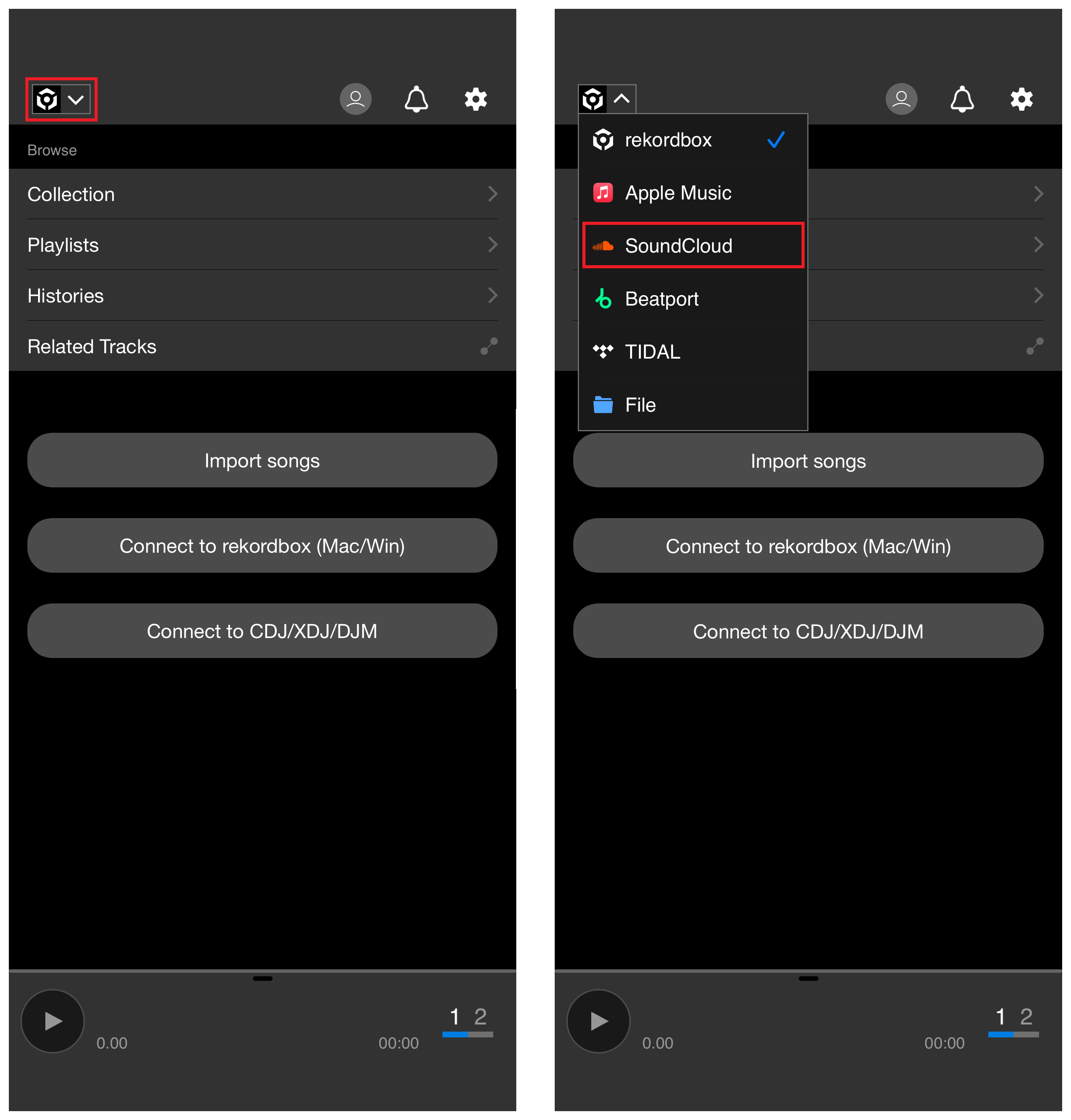
Follow the steps in the below to access the Free DJ Playlists.
https://rekordbox.com/en/support/faq/ios/#faq-q100028
This cloud Service is a service that provides the Customer the Dropbox storage that the Company is authorized to administer.
It is prohibited to conduct acts that disturb other customers, such as occupying the capacity.
https://rekordbox.com/en/support/faq/ios/#faq-q100016
Yes.
High Quality Streaming can be used by selecting [High Quality 256kbps (AAC)] for [Audio Quality].
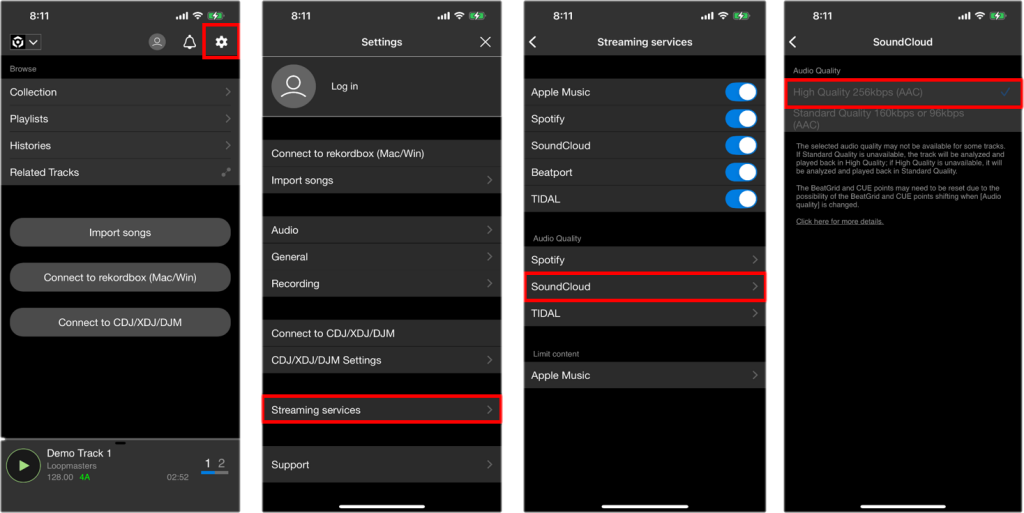
However, depending on the tracks, the selected sound quality may not be available.
If Standard Quality is unavailable, the track will be analyzed and played back in High Quality; if High Quality is unavailable, it will be analyzed and played back in Standard Quality.
The Beat Grid and Cue points may also need to be reset due to the possibility of the Beat Grid and Cue points shifting when [Audio Quality] is changed.
https://rekordbox.com/en/support/faq/ios/#faq-q100032
When you connect to DDJ-FLX2 with Bluetooth, no sound is output from the MASTER output terminals and headphones output terminals of DDJ-FLX2.
To do so, use the speaker or headphone terminal of the mobile device.
https://rekordbox.com/en/support/faq/ios/#faq-q100089
Change the iPad settings with the following procedure.


https://rekordbox.com/en/support/faq/ios/#faq-q100092
The use of certain tracks on SoundCloud by third parties is restricted due to copyright agreements.
These tracks will not be available in rekordbox for iOS.
https://rekordbox.com/en/support/faq/ios/#faq-q100025
Some tracks are grayed out because the use of certain tracks on SoundCloud by third parties is restricted due to copyright agreements.
You can't play them, but you can add, delete, and sort them in the playlist.
https://rekordbox.com/en/support/faq/ios/#faq-q100026
The keys of some tracks provided by SoundCloud may differ from the keys that were analyzed by rekordbox for iOS.
To turn off key analysis in rekordbox for iOS follow the steps in below [Track Analysis Settings].

https://rekordbox.com/en/support/faq/ios/#faq-q100029
The Grids and Cue points of tracks that have been analyzed may shift when the [Audio Quality] is changed.
If the [Audio Quality] has been changed, Cue points will need to be reset after the tracks are reanalyzed.
Also ensure that the [Audio Quality] settings are the same on all the devices synced using Library Sync.
For Beatport Streaming, the [Audio Quality] settings are automatically applied to all the synced devices as long as the same Beatport account is being used on each device.
https://rekordbox.com/en/support/faq/ios/#faq-q100030
If you are not logged in to Apple Music, imported Apple Music tracks are not displayed in the rekordbox, [Collection], [Playlist], and [Histories] lists.
Perform [Apple Music] login controls.
You can login from [Settings] > [Streaming services].
https://rekordbox.com/en/support/faq/ios/#faq-q100109
Tracks on Apple Music are protected by Digital Rights Management (DRM), so they cannot be played from [My Music].
Please play them from Apple Music.
https://rekordbox.com/en/support/faq/ios/#faq-q100108
Follow the steps below to reanalyze your tracks.
Open your collection and display the tracks you wish to reanalyze for one of the streaming services you are using.

Then, select all the displayed tracks and perform the reanalysis.

https://rekordbox.com/en/support/faq/ios/#faq-q100031
AlphaTheta accounts have a single sign-on feature, so the login account may be changed to a different Apple Account if you have logged in to another rekordbox.
To use your AlphaTheta account, log out from Apple Music first and try logging in again using the Apple Account that you want to use.
https://rekordbox.com/en/support/faq/ios/#faq-q100097
To use the Cloud Library Sync feature, you will need the following.
*You can try up to 10 tracks even while you are not subscribed to the above plans.
Login with any of the following accounts is required.
For a detailed description on how to use Cloud Library Sync, refer to the Cloud Library Sync Operation Guide in the Manuals page.
https://rekordbox.com/en/support/faq/ios/#faq-3688
You can switch your Dropbox account in:
rekordbox for Mac/Windows: [CLOUD] tab on My Page
rekordbox for iOS/Android: [Settings] > [Account Information] > [Cloud Storage Services]
When you switch your Dropbox account, the changes will be applied to all versions of rekordbox for Mac/Windows/iOS/Android logged in with the same AlphaTheta account.
Please note that you won't be able to play tracks from the cloud storage of the previous Dropbox account because they're deleted from the local Dropbox folder.
https://rekordbox.com/en/support/faq/ios/#faq-3709
You can change Google accounts from [Settings] > [Account Information] > [Cloud Storage Services] of rekordbox for iOS.
If you are using rekordbox for iOS on several devices, log in to each device using a Google account you want to change.
If you are using Google Drive on Cloud Library Sync of rekordbox for Mac/Windows, log in again using a Google account you want to change on rekordbox for Mac/Windows.
https://rekordbox.com/en/support/faq/ios/#faq-q100081
You don't need to install the Dropbox app for use with rekordbox for iOS.
However, rekordbox for Mac/Windows requires the installation of the Dropbox desktop application.
https://rekordbox.com/en/support/faq/ios/#faq-12782
No. You do not need to install the Google Drive app.
You can use it by logging in to your Google account.
https://rekordbox.com/en/support/faq/ios/#faq-q100079
Due to TIDAL restrictions, it's not possible to play TIDAL tracks when you're offline.
https://rekordbox.com/en/support/faq/ios/#faq-q100059
The following restriction applies when using tracks from TIDAL.
- Tracks can't be loaded to connected devices via PRO DJ LINK.
https://rekordbox.com/en/support/faq/ios/#faq-q100076
Establish a connection via Bluetooth.
Some DJ controllers and iOS devices with Lightning terminals may not communicate even if connected via USB.
*For details, refer to your DJ Controller Instruction Manual.
https://rekordbox.com/en/support/faq/ios/#faq-q100083
Beatport Streaming is a subscription streaming service that DJs can use to access the Beatport music catalog.
A separate signing up is required to use this service.
For details, refer to the Beatport website.
Click here for the Beatport FAQ page.
*For rekordbox for iOS, while tracks longer than 2 minutes cannot be used, all tracks on Beatport can be used for DJing even without a Beatport subscription.
https://rekordbox.com/en/support/faq/ios/#faq-q100071
Check if any of the following applies:
- Devices are logged into different AlphaTheta accounts.
Use the same AlphaTheta account on all your devices.
You can check which AlphaTheta account you're using on each device as follows:
rekordbox for Mac/Windows: MY PAGE
rekordbox for iOS: [Settings] > [Account Information]
- Cloud Library Sync is turned off.
rekordbox for Mac/Windows: On MY PAGE, open the [CLOUD] tab and turn on [Sync library to another device].
rekordbox for iOS: Open [Settings] > [Account Information] and turn on [Cloud Library Sync].
- You're using LINK EXPORT mode.
Libraries can't be synced when you're using LINK EXPORT mode.
When you finish using LINK EXPORT mode, the library will resume syncing.
https://rekordbox.com/en/support/faq/ios/#faq-3698
Check the Bluetooth indicator and perform the following.
https://rekordbox.com/en/support/faq/ios/#faq-q100086
For the latest news on supported countries, refer to the Beatport website.
https://rekordbox.com/en/support/faq/ios/#faq-q100072
If the tracks in your playlist aren't on the PC/Mac or mobile device you're using, they won't upload to the cloud.
Instead, upload the track from the PC/Mac or mobile device where it's stored.
https://rekordbox.com/en/support/faq/ios/#faq-12376
The environment you're using the mobile device in may be a factor.
The following may solve the issue:
If the problem persists even after addressing the above, please get in touch at Inquiries.
https://rekordbox.com/en/support/faq/ios/#faq-q100084
If your version of rekordbox for iOS / Android doesn't support Auto Upload, it won't be enabled and the playlist will work in the usual way.
Please update rekordbox for iOS / Android to the latest version to enable Auto Upload.
https://rekordbox.com/en/support/faq/ios/#faq-12427
No. You cannot play tracks in an offline environment. (As of March 2025)
https://rekordbox.com/en/support/faq/ios/#faq-q100073
You will see download errors when:
https://rekordbox.com/en/support/faq/ios/#faq-50651
If your version of rekordbox for iOS is old, this symptom may occur. Upgrade to version 4.1.0 or higher before use.
https://rekordbox.com/en/support/faq/ios/#faq-q100066
The Advanced plan or Professional plan is required.
*For rekordbox for iOS, while tracks longer than 2 minutes cannot be used, all tracks on Beatport can be used for DJing even without a Beatport subscription.
https://rekordbox.com/en/support/faq/ios/#faq-q100075
The following restriction applies when using tracks from Beatport Streaming.
- Tracks can't be loaded to connected devices via PRO DJ LINK.
https://rekordbox.com/en/support/faq/ios/#faq-q100077